Devices that support mirroring are:
iPhone 4s or newer, iPod touch 5 or newer, iPad mini (all models), iPad 2nd gen or newer, and new model Macs with built-in mirroring running Mountain Lion, Mavericks, Yosemite, or El Capitan.
AirPlay video from your iPhone, iPad, or iPod touch
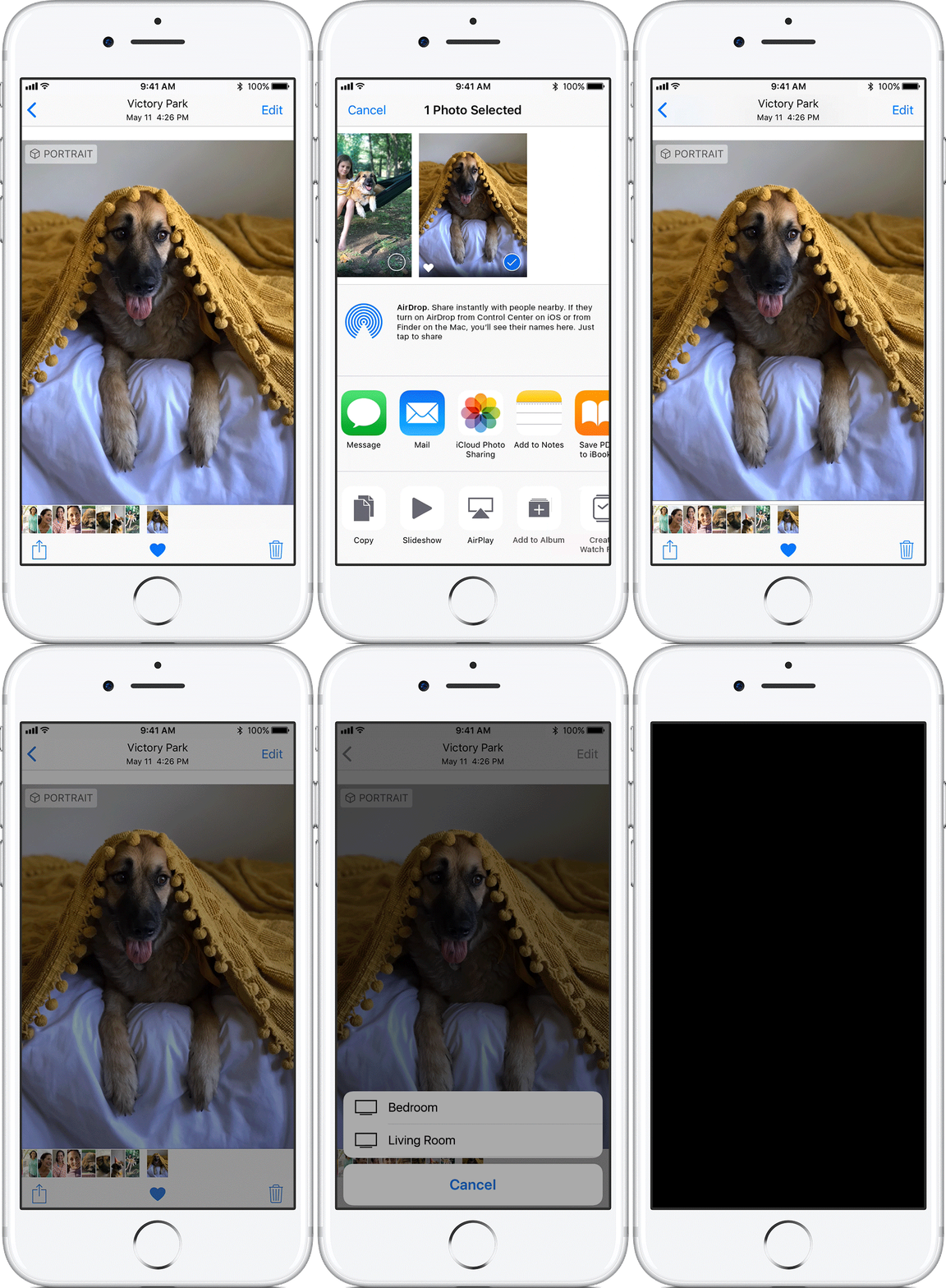
AirPlay photos and video from your iPhone, iPad, or iPod touch
Here’s how to AirPlay photos or video from your iOS device:- Make sure that you’re on the local WiFi.
- Open the app that you want to AirPlay from.
- Tap
 . In some apps, like Photos, tap
  , then tap AirPlay.
 - Select Think Big. Don’t see is? Make sure that your iOS device is connected to the same local Wi-Fi network.

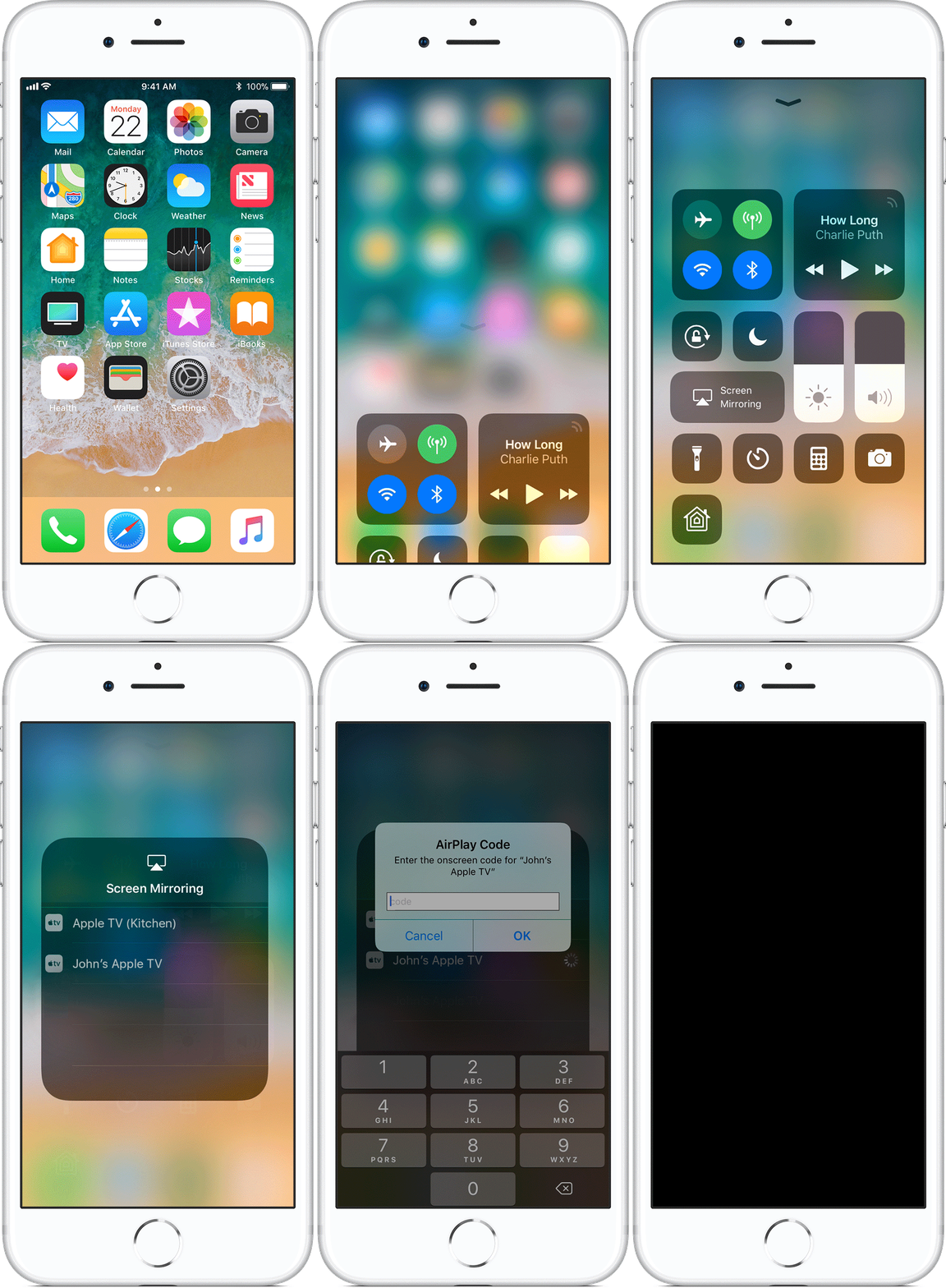
Mirror your iPhone, iPad, or iPod touch
Here’s how to mirror the entire screen on your iOS device:- Make sure that you’re on the local Wifi.
- On your iOS device, swipe up from the bottom of your screen to open Control Center.
- In Control Center, tap Screen Mirroring, then select Think Big from the list. Don’t see your it? Make sure that your iOS device is connected to the local Wi-Fi.
Turn off AirPlay or Screen Mirroring
- Open the app that’s using AirPlay.
- Tap
 . To stop mirroring your iOS device, open Control Center and tap Screen Mirroring.
 - Tap your iOS device from the list.
Use AirPlay to display video from your Mac
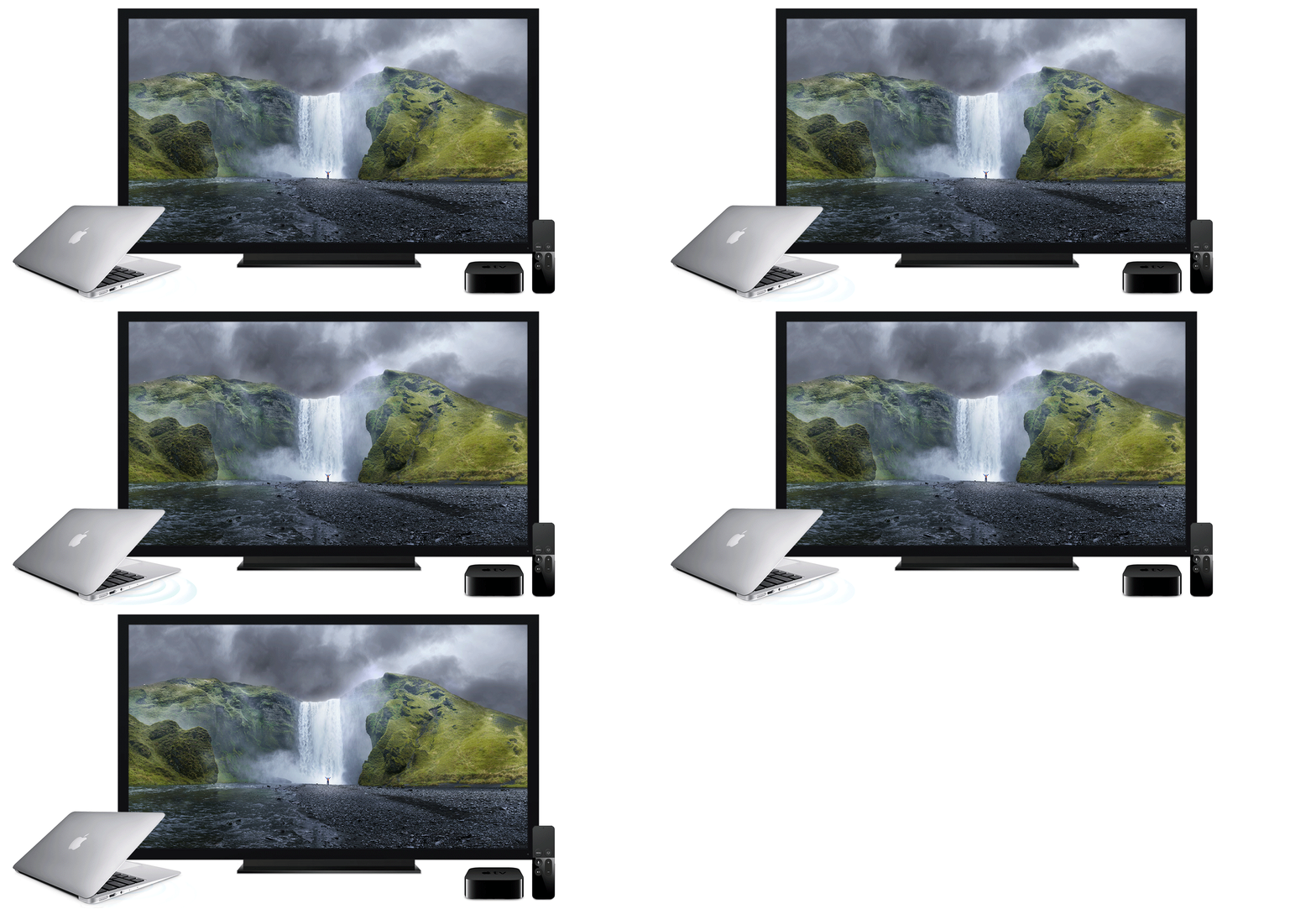
Use AirPlay to stream video from Safari or QuickTime Player
Frist make sure you our connected to the local WiFi. In OS X El Capitan or later, you can stream certain videos to your Apple TV from Safari or QuickTime Player (version 10). Click the AirPlay icon (if available) in the playback controls, then choose your Apple TV.
Use AirPlay to mirror or extend your Mac display
When your Mac display and Apple TV are awake, choose your TV from the AirPlay status menu in the menu bar. You can then use the same menu to:
- Mirror your Mac display or use your TV as a separate display that extends the desktop of your Mac display.
- Turn off (disconnect) AirPlay. Pressing the Menu button on the Apple TV remote also turns off AirPlay.
Get help
If you don’t see your Apple TV in the AirPlay menu, make sure that your Mac meet the system requirements. Also check your firewall settings:- Choose Apple menu () > System Preferences, then click Security & Privacy.
- Click the lock icon, then enter an administrator name and password.
- From the Firewall tab, click Firewall Options.
- Make sure that “Block all incoming connections” is not selected, and “Automatically allow signed software to receive incoming connections” is selected.
- Try making more memory available by quitting one or more apps or installing more RAM.
Requirements for using AirPlay
Here’s a quick way to find out if your Mac supports AirPlay: Choose Apple () menu > System Preferences, then click Displays. If you don’t see a “Show mirroring options in the menu bar when available” checkbox, your Mac doesn’t support AirPlay. Minimum requirements if your Mac and Apple TV are on the same network:- And any of these Mac computers with OS X Mountain Lion v10.8 or later:
- iMac (Mid 2011 or later)
- Mac mini (Mid 2011 or later)
- MacBook (Early 2015 or later)
- MacBook Air (Mid 2011 or later)
- MacBook Pro (Early 2011 or later)
- Mac Pro (Late 2013 or later)
- Mac (2012 or later) with OS X Yosemite v10.10 or later.
GoogleCast implementation supports casting (screen sharing) from Chromebooks, compatible Android devices & desktop platforms using the Google Chrome browser.
You can use Chromebooks that support Google Cast. Please refer to Google’s documentation on how to use Chromecast with your Chromebook.
Use Chromecast with your Chromebook
You can view your favorite videos, photos, and websites on your TV using Chromecast.
Before you set up
For Chromecast to work on your Chromebook, you’ll need:
- Chromecast or Android TV
- The newest version of Chrome OS.
Cast from your Chromebook
- Open Chrome
.
- At the top right, click More
Cast.
- Click Cast to.
- Choose whether you’d like to share your current tab in Chrome (Cast tab) or your whole screen (Cast desktop).
- Click Think Big.
To stop sharing, click Stop.
Please refer to Google’s documentation on how to cast your Android screen from the Google Cast app. If your Android device does not have the cast functionality built-in, you can enable it by downloading Google Cast app from Google Play Store.
Cast your Android screen from the Google Home app
Casting your Android screen lets you mirror your Android device to the TV so you can enjoy your content exactly as you see it on your mobile device—only bigger.
Step 1. Get started
- Casting your Android screen is available on devices running Android 4.4.2 or higher. Please note: Some devices have been optimized for screen casting so your experience may vary.
- Turn off “Power Saving Mode” on your Android device. Power Saving Mode can limit the processing power of your device which might affect the performance of the Cast Screen feature.
- Important: The “Microphone” permission in the Google Play Services app needs to be turned on to successfully use the ‘Cast Screen/Audio’ feature with Chromecast. If you don’t have this permission turned on, the Cast Screen session will immediately disconnect after trying to connect.
- To turn on microphone permissions:
- On your Android device, tap Settings
.
- Scroll down and tap Apps
- Look for “Microphone” and slide the slider On
.
- On your Android device, tap Settings
- To turn on microphone permissions:
Step 2. Cast your screen from your Android device
- Connect your Android device to the local Wi-Fi network.
- Open the Google Home app
.
- In the top left corner of the app’s Home screen, tap Menu
- Select Think Big.

Step 3. Adjust the volume when casting your Android screen
- Open the Google Home app
- In the upper right corner of the home screen, tap Devices
to see your available Chromecast or TV with Chromecast built-in.
- Tap the device card for the Chromecast or TV with Chromecast built-in that is currently casting content.
- Move the slider to adjust the volume.
Step 4. Stop casting your screen from your Android device
From the Google Home app
- Open the Google Home app
- In the top left corner of the app’s Home screen, tap Menu
From the notification drawer
- Pull down the notification drop down drawer on your Android device.
- Tap the “Casting screen” notification
Desktop platforms supported by Google Chrome
Windows 7, Linux and other desktop platforms that are supported by Google Chrome for casting are also supported. This technology can also be used to cast the entire desktop, including audio.
Cast from your Chromebook
- Open or Install Google Chrome
- At the top right, click More
- Click Cast to.
- Choose whether you’d like to share your current tab in Chrome (Cast tab) or your whole screen (Cast desktop).
- Click Think Big
To stop sharing, click Stop.